 MultiTab Print | Print All Tabs
Print all your tabs at once
MultiTab Print | Print All Tabs is a free browser extension that prints all your selected tabs, in tab order, through one print dialog or one PDF.
Five tabs, one print job
Chrome, Edge and Firefox print one tab per print dialog. MultiTab Print gathers the tabs you pick into one combined preview, so you print once.
-
Open the tabs you want to print
Receipts, invoices, research articles, a claim spread across several pages, a PDF itinerary: any ordinary web page or PDF tab works.
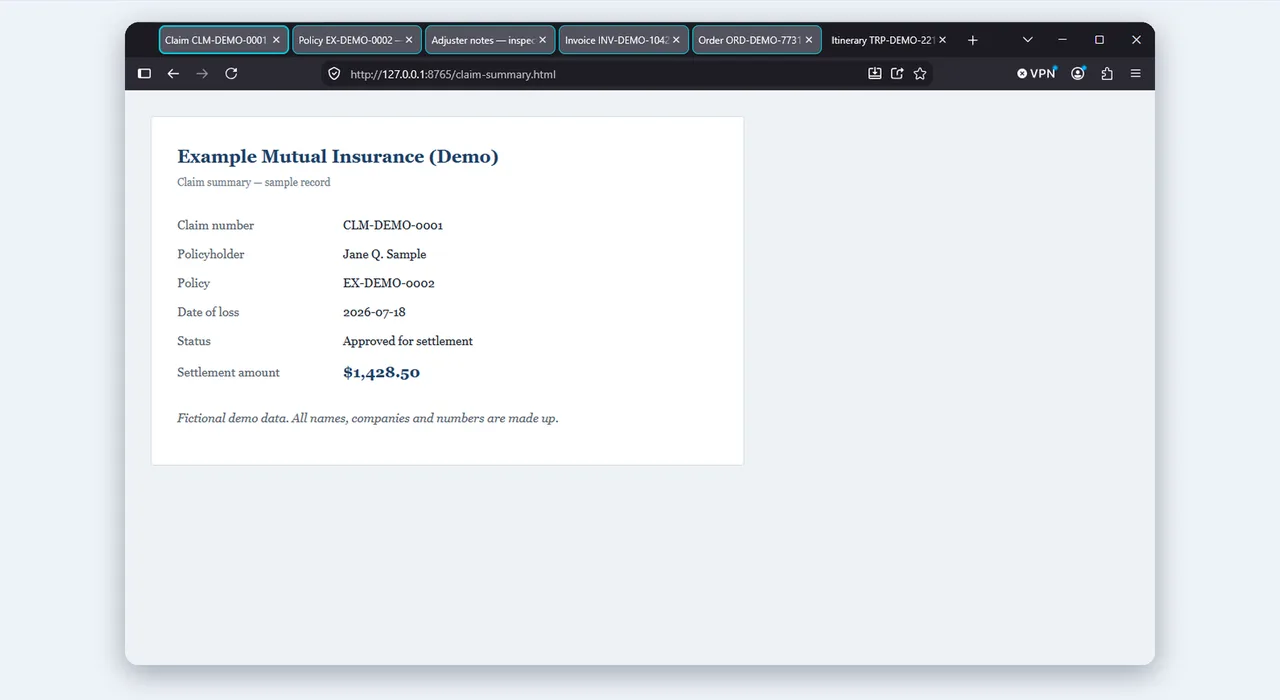
-
Click MultiTab Print and pick tabs
Tick tabs in the popup, or select tabs in the tab strip and right-click Print Selected Tabs. Alt+Shift+M does the same.
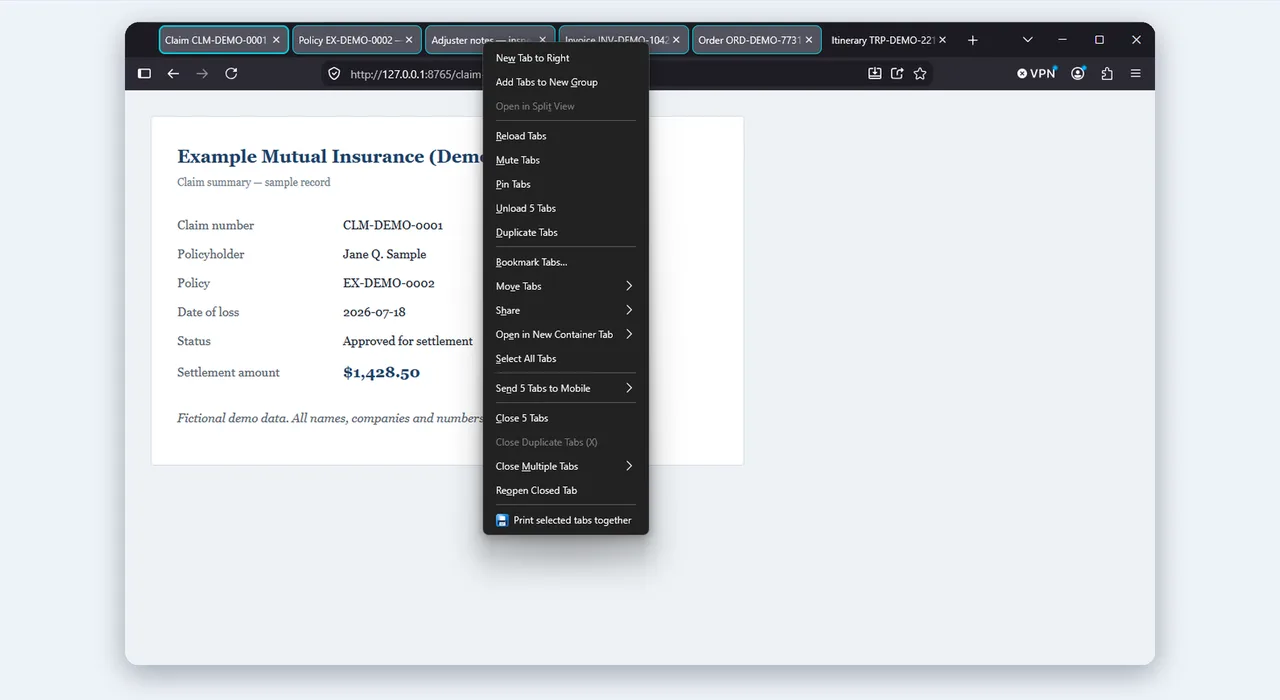
-
Allow access to those tabs, once
The browser asks for permission only when you print, and only for the tabs you chose. Nothing is uploaded.
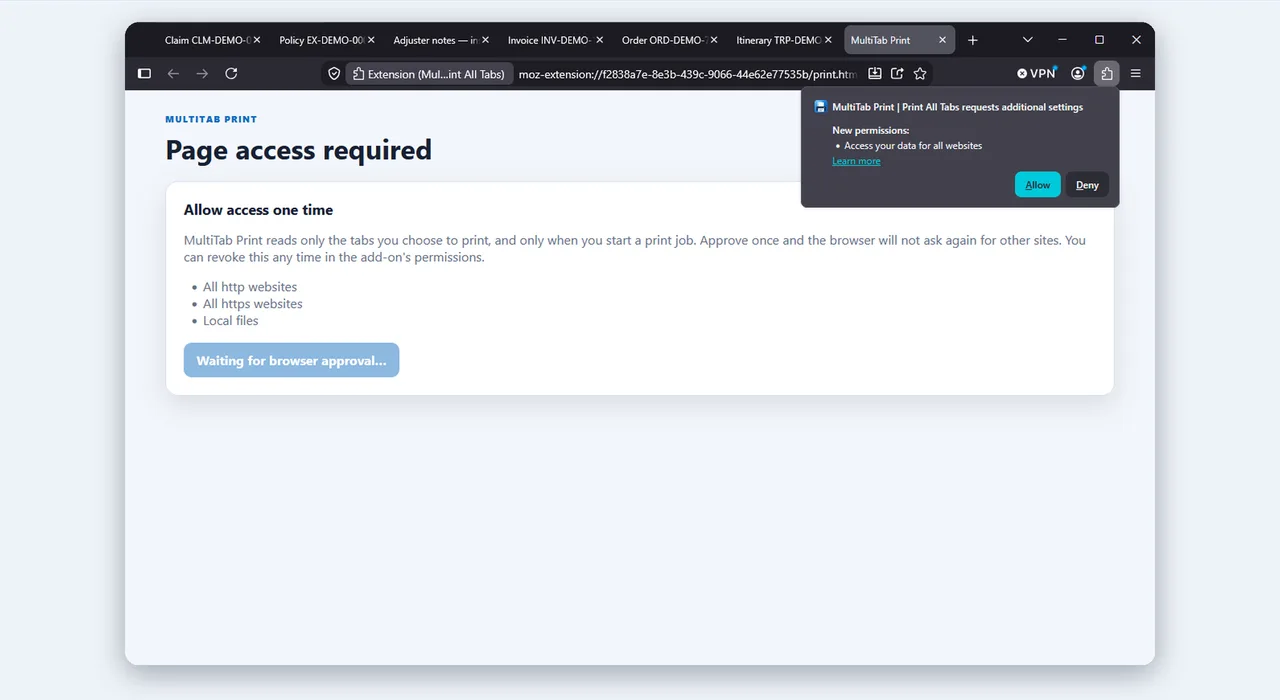
-
Review the combined preview
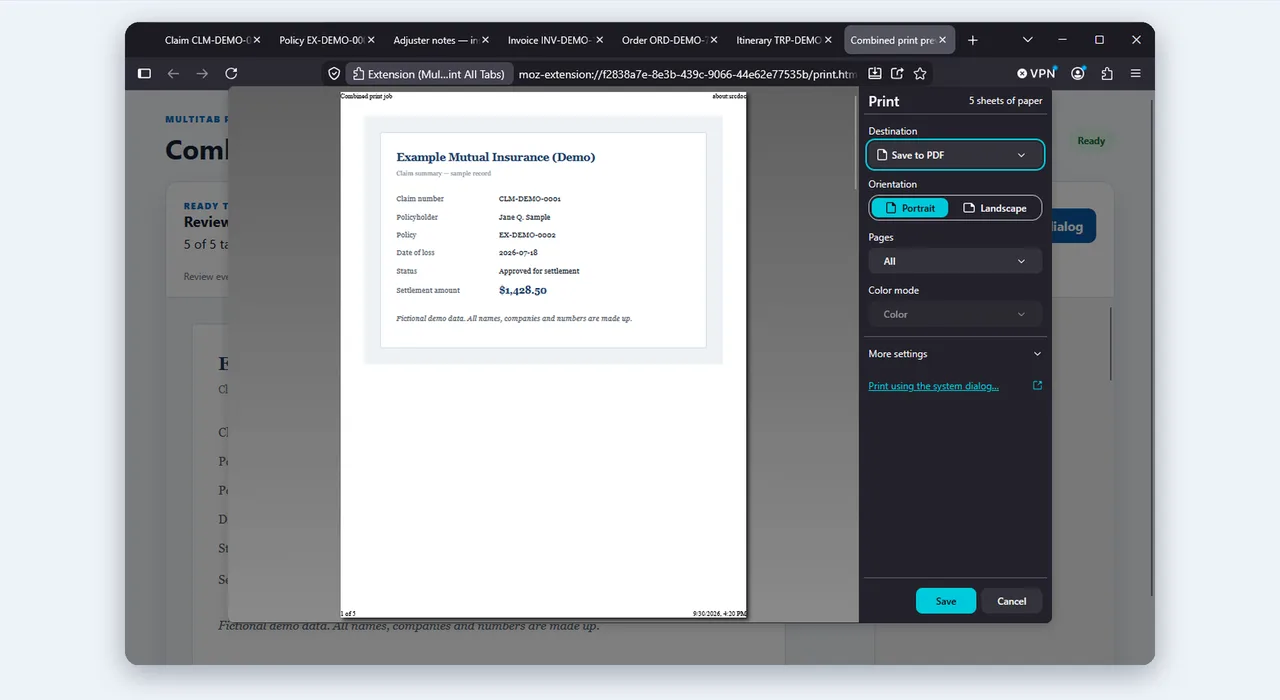
Every tab appears in tab order, with a tab list beside the pages showing each tab's page count and anything that couldn't be captured.
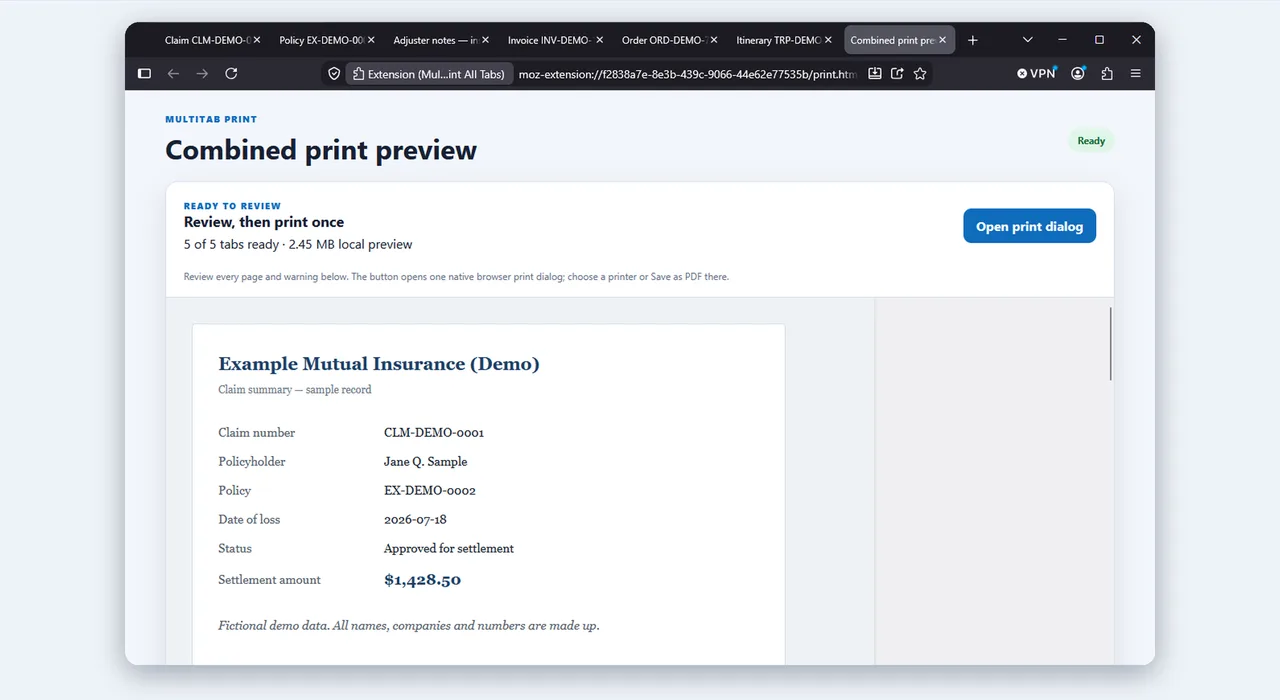
-
Print once, or Save as PDF
One native print dialog opens for the whole bundle. Choose a printer, or Save as PDF to get one file with selectable, searchable text.
Built for real stacks of tabs
Tabs from any window
Select tabs from the current window or from every open browser window.
Always in tab order
Pages print in the order your tabs sit in the tab strip, so bundles stay organized.
PDF tabs included
PDFs print alongside web pages, and their text stays selectable, searchable and copyable.
One native print dialog
Use your browser's own dialog for the whole bundle: any printer, or Save as PDF.
Your print settings, saved
Paper, orientation, margins, scale and backgrounds are remembered locally.
Menu and shortcut
Start from the tab right-click menu or press Alt+Shift+M.
Privacy first
Page content is processed locally in your browser. MultiTab Print has no analytics, account, advertising network, or developer server. Website access is requested only when you print, and is used only to read the tabs you choose to print.
Honest limitations
PDFs are limited to 50 MB each and 300 pages per job. Blob-only PDFs, POST-only PDFs, browser settings pages, extension pages, cross-origin frames, closed shadow roots, and some canvas content cannot always be reproduced. The tab list beside the preview marks anything that was not captured. Always review the preview before printing important documents.
Stop opening twenty print dialogs
Receipts and invoices
Print a batch of receipts, invoices or order confirmations in one go.
Research into one PDF
Save a set of articles or documentation pages as one PDF with searchable text.
Claims and applications
Print a claim, application or benefits portal that spreads one case across several tabs.
Archive a window
Keep a window of tabs as a single PDF before closing them, web pages and PDF tabs together.
Questions people ask
Does Chrome have a built-in way to print all tabs?
No. Chrome's print dialog prints one tab at a time. MultiTab Print adds a way to print many tabs in one job.
Can I print multiple tabs to one PDF?
Yes. Pick the tabs, review the combined preview, then choose Save as PDF in the print dialog. Text stays selectable and searchable.
Does it work in Edge, Brave, Opera and Vivaldi?
Yes. These browsers run Chrome extensions, so you can install MultiTab Print from the Chrome Web Store. See printing all tabs in Edge.
Does it work in Firefox?
Yes, install it from Firefox Add-ons. See printing all tabs in Firefox.
Is it free?
Yes. An optional donation reminder may appear after some successful print jobs, and an optional invitation to leave a review may appear after repeated use. Both can be turned off permanently, and neither is required for any feature.
Does it upload my pages anywhere?
No. Pages are processed in your browser. There is no account, analytics, advertising or developer server.
Does it keep my tabs in order?
Yes. Pages print in browser tab order.
Can it print PDF tabs?
Yes. PDF tabs print alongside web pages and their text stays selectable, up to 50 MB per PDF and 300 pages per job. In Firefox, PDFs opened from your computer are chosen with a file picker in the print page; nothing is uploaded.
What can't it print?
Browser settings pages, extension pages, blob-only or POST-only PDFs, cross-origin frames, closed shadow roots and some canvas content cannot always be reproduced. The preview's tab list marks any tab that was not captured or only partly captured.
Can I print only some tabs?
Yes. Tick the tabs you want in the popup, or select tabs in the tab strip, right-click and choose Print Selected Tabs. Alt+Shift+M prints the selected tabs too.
Why does it ask for site access?
To read the tabs you chose to print. It asks only when you print, and uses the access only for those tabs.
Print every tab in one go
Free, local and private. Install MultiTab Print | Print All Tabs and your next twenty tabs become one print job.